Zones traffic analysis
Zones is one of the aggregation modes in the Traffic Analytics application.
Setting up a Traffic analysis with Zones
Learn how to set up a Traffic Analysis by selecting and configuring zones.
Reviewing Zones analysis results
Learn how to review the Traffic Details panel for your Traffic analysis with Zones, including a Summary and Trend analysis based on selected metrics.
Review the Traffic Details panel, which provides a Summary tab with of Characteristics and Measurements of your selected Road Segments, and a Trend analysis tab which offers insights based on up to three metrics. 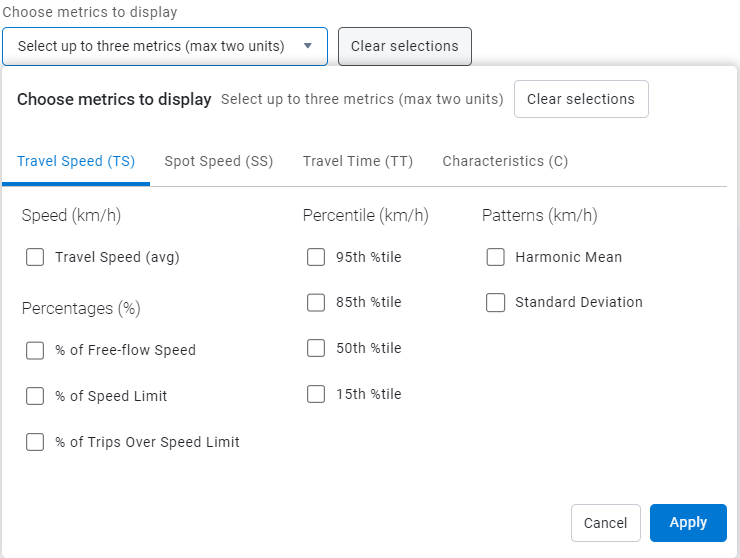
- The Trend analysis tab allows you to Choose metrics to display from the menu for trend analysis. Select up to three metrics, with a maximum of two units. There are four tabs on the menu: Travel Speed, Spot Speed, Travel Time and Characteristic.
- Click Apply to generate three charts with the metrics that you have selected. Hover over a data point to view additional information.